Automate supplier statement reconciliation in QuickBooks Desktop and Enterprise, and stop ticking off every line
Also called vendor statement reconciliation. Forward the supplier statement you received and your Statements dashboard shows what agrees with QuickBooks, what needs review, and whether the closing balance could be proven. It connects through Intuit’s free QuickBooks Web Connector.
- Cut the time you spend on supplier statements by 80%
- No ledger reports to run, no date ranges to pick
- Connect through the Web Connector you already have
Statement Zen only reads your bills and vendor credits and never changes your company file. Using QuickBooks Online instead? See Statement Zen for QuickBooks Online.
Watch a QuickBooks Desktop supplier statement checked
What a customer tells us
Time back on supplier statements.
“Statement Zen saves us 80% of our time on supplier statement reconciliation.”
How the closing balance is checked
Review the arithmetic check, the results reported by two AP teams, and the product on the free tier.
The balance is proven before it is reported
Opening balance plus every signed movement is checked against the closing balance. If it does not close, the statement comes back as unproven rather than as a number you are expected to take on trust.
What it cannot tie out, it names
A line that cannot be matched with confidence is reported with its reference, date and amount instead of being folded into a difference total. The only work left is the work that genuinely needs a person.
Two AP teams, on their own count
Two accounts payable teams using earlier versions of Statement Zen went from 80–100 hours a month to under four. That is their figure rather than a measurement of ours, and it came from earlier versions of the product.
Check it on your own books, free
25 reconciled statements every month, no card. A statement that cannot be reconciled does not use that allowance, so trying it costs you nothing.
Reads your accounts payable position from Xero, QuickBooks Online, QuickBooks Desktop, Vista by Viewpoint, TechnologyOne and Odoo — and from anything else through the Statement Zen API.
Statement Zen does one job: the supplier statement reconciliation that lands on an accounts payable desk every month, right before the payment run. It was built for that job and it does not try to be an accounts payable suite.
Connect QuickBooks Desktop once, then forward statements
Connect QuickBooks Desktop gives you a small StatementZen.qwc file and a password. You add the file to Intuit’s free QuickBooks Web Connector on the PC where QuickBooks runs. After that you only forward statements. Every step, and fixes for common Web Connector messages, are in the QuickBooks Desktop help.
Before you connect, check these
- QuickBooks Desktop Pro, Premier or Enterprise on a Windows PC. QuickBooks Desktop for Mac has no Web Connector.
- The QuickBooks Admin login for the company file. You need it once, to allow Statement Zen.
- A PC that stays on with the Web Connector running. To sync while QuickBooks is closed, the Admin user needs a complex password; otherwise leave the company file open.
Create a free Statement Zen account, open Connections and choose Connect QuickBooks Desktop. Add the StatementZen.qwc file to Intuit’s free Web Connector on the PC where QuickBooks runs, and paste the password. Statement Zen then reads your bills and vendor credits, open and paid, and gives you your forwarding address.
Forward it to your unique Statement Zen address in the format you received it: native or scanned PDF, CSV or spreadsheet. There is no upload screen and no need to re-key it.
Your Statements dashboard groups differences in both directions, shows unresolved lines with their reference, date and amount, and reports the closing balance as proven or not.
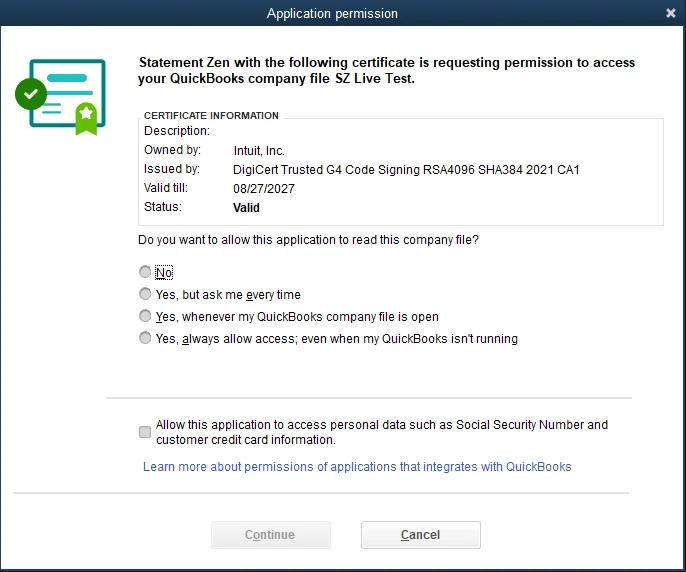
QuickBooks asks you once
When you add Statement Zen, QuickBooks shows its own permission window. Choose “Yes, always allow access; even when my QuickBooks isn’t running” and leave the personal-data box unticked. Statement Zen does not need it.
QuickBooks’ screens say an app may read and modify your company file, because the Web Connector writes two small records of its own when an app is added. Statement Zen only asks for bills and vendor credits. It never changes your data.
What Statement Zen does for QuickBooks Desktop AP teams
Vendor statement reconciliation for QuickBooks Desktop, with the balance check and exception details an AP team needs for review.
Doing it by hand today? See the supplier statement reconciliation checklist and how references and part payments are matched.
Guides for QuickBooks Desktop AP teams
- Free Supplier Statement Reconciliation Template (Excel Workbook)
Free supplier statement reconciliation template: an Excel workbook that imports to Google Sheets, with a worked example and cause codes.
- Supplier Statement Reconciliation Checklist for Month-End and Before the Payment Run
A supplier statement reconciliation checklist for month-end and the day before the payment run, with a worked example and printable cards.
- How to Find Missing Credit Notes and Duplicate Payments With Supplier Statements
Find credit notes your ledger missed and invoices you paid twice, using the supplier statement. A worked example, two chase emails and ERP steps.
- How Supplier Statement Matching Works: References, Amounts, Dates and Part Payments
How supplier statement matching works: the order of the rules, and how references, amounts, dates and part payments pair, with a worked example.
- Supplier Statement Reconciliation as an Audit Control: How It Gets Tested
Is supplier statement reconciliation a key control? What auditors test under SOX, UK Provision 29 and Australian rules, and the evidence to keep.
- Supplier Statement Reconciliation Best Practices: 12 Habits for AP Teams
Supplier statement reconciliation best practices: 12 habits for when to run the check, who owns each difference and what to chase first.
Checks the stated closing balance
Opening balance + every signed movement is checked against the Closing balance. When the equation closes, the result is reported as proven. When it does not, the statement is reported as unproven.
Reads bills and credits, changes nothing
Statement Zen asks QuickBooks for your bills and vendor credits and nothing else. It never writes to your company file, so your books stay as they are.
Paid bills come with their paid date
Paid bills from the last 12 months arrive with the date they were paid, so a bill you paid after the statement date shows as timing, not as missing.
Runs on the PC you already have
Intuit’s free QuickBooks Web Connector, installed with recent versions of QuickBooks Desktop, does the syncing. There is no server to set up, and the PC only makes outgoing connections.
Pricing by monthly statement allowance
Your first 25 reconciled statements each month are free. Paid plans are listed on the pricing page. A statement Statement Zen cannot reconcile does not use the allowance.
Flags unresolved statements
Statement Zen does not force an unresolved statement into a completed result. It marks the statement for review and keeps the available line details with it.
Copy the exception list
Each unmatched line includes its reference, date and amount. One button copies the complete list so you can paste it into a supplier reply.
No supplier sign-up
Statement Zen does not send messages to your vendors. There is no supplier portal or registration email, so suppliers can keep sending statements to you as they do now.
Compare the plan allowance with your statement volume
Start with the number of supplier statements your team reviews in a typical month.
Your current process
Varies
by statement and team
Use your own handling time and staff cost. Long or scanned statements may take more time to check line by line.
Statement Zen
25
reconciled statements free each month
Paid plans and their prices are on the pricing page. A statement we cannot reconcile does not use your allowance.
Billing basis
Flat
monthly tier
Plans are based on statement allowance, not seats. Compare the published tier with your monthly statement volume.
Statement Zen reads your QuickBooks Desktop bills and vendor credits through Intuit’s Web Connector. You can test the first 25 reconciled statements each month without a card before choosing a paid tier.
What Statement Zen does on QuickBooks Desktop, at a glance
This summary covers the free allowance, the QuickBooks Desktop setup and what Statement Zen reads and writes.
Cost to start
Free (25 statements/month)
QuickBooks editions
QuickBooks Desktop Pro, Premier and Enterprise on Windows
QuickBooks Desktop setup
Add one .qwc file to Intuit’s free Web Connector and paste a password
What it reads
Open bills, paid bills from the last 12 months, and vendor credits
What it writes to QuickBooks
Nothing
How often it reads
Once a day, through the Web Connector
How it verifies numbers
Proves with maths (OB + movements = CB)
When it’s uncertain
Flags the statement for review; does not use your allowance
What your suppliers have to do
Nothing. They are never contacted
Frequently asked questions
Short answers about reconciling QuickBooks Desktop supplier statements, with the limits stated.
How do I reconcile a supplier statement in QuickBooks Desktop?
How do I connect QuickBooks Desktop to Statement Zen?
Which editions of QuickBooks Desktop work?
Does it work with QuickBooks Enterprise?
What does Statement Zen read from QuickBooks Desktop?
Can Statement Zen change anything in my QuickBooks company file?
Does QuickBooks have to stay open?
I keep more than one company file. Can I connect them all?
What does it cost to reconcile supplier statements in QuickBooks Desktop with Statement Zen?
What happens when a supplier statement doesn't reconcile?
How do I tell the supplier which invoices are missing?
Do my suppliers have to sign up for anything, or change how they send statements?
Running something else?
Xero, QuickBooks Online, QuickBooks Desktop, Vista, TechnologyOne and Odoo connect themselves. Any other accounting system or ERP can send its whole position, paid and unpaid, through the Statement Zen API, or by an arrangement we set up with you — the supplier statement still just gets forwarded by email. Tell us what you use and we will tell you straight whether we can reconcile against it.
Tell us what you useStill have a question?
Read the QuickBooks Desktop help, or email your question to support@statementzen.com with your QuickBooks edition and the setup step you are on.
See your first QuickBooks Desktop statement reconciled
Sign up, open Connections and choose Connect QuickBooks Desktop. Add the file to your Web Connector, then forward a supplier statement. The first 25 reconciled statements each month are free.
A statement Statement Zen cannot reconcile does not use your monthly allowance.
Prefer to talk to someone? Book a 15-minute call