QuickBooks Online
How to Reconcile Supplier Statements in QuickBooks Online
We found no supplier statement screen in QuickBooks Online’s published help as of 30 October 2026. Reconcile is for bank and credit card accounts, so a supplier statement gets reconciled by hand. Some people search for it as a vendor statement. Run one report as at the statement date, compare the two balances, then go through the lines one by one.
The line check is the slow part. In the example below the gap is $962.75, but five separate problems sit behind it.
Add the five up without their signs and you get $5,721.95. Most of that cancels out, so the $962.75 total tells you almost nothing about where to look. Below we check one statement line by line, then go through the QuickBooks clicks for each fix. If you would rather have the general method first, start with supplier statement reconciliation from start to finish.
Menu names below come from Intuit’s help pages and, where we say so, Intuit Community answers, as of 30 October 2026. On 31 October 2026 we clicked through the main ones in Intuit’s own Test Drive sample company. Menus move, so if yours differs, search for the report by name. Report names also differ by edition, and this guide uses the US ones.
By Michael Usov, FounderPublished Updated 28 min read
Key takeaways
- We found no supplier statement report in QuickBooks Online’s published help as of 30 October 2026. Run Vendor Balance Detail as at the statement date and compare it with the statement yourself.
- Compare totals first, then check every line against the report. A zero gap can still hide two errors.
- Five causes explain every gap in the example below. You never entered a bill, entered one twice, or never recorded a credit note, or the supplier has not applied a payment, or a date falls either side of the cut-off.
- Fix your own side inside QuickBooks. Ask the supplier only about what is theirs, and give them a payment date and bank reference.
On this page
Can you use the Reconcile screen for a supplier statement?
Short answer
Can you reconcile a supplier statement in QuickBooks Online?
Yes, but by hand. A supplier statement (often searched as a vendor statement) does not go through the Reconcile screen, which handles bank and credit card accounts only. Run Vendor Balance Detail as at the statement date, compare the totals, then check every statement line against the report and fix or query each difference.
Reconcile and a supplier statement check are different jobs. The Reconcile tool in QuickBooks asks you to pick a bank or credit card account, then enter the ending balance and ending date from the bank’s statement. You tick off transactions until the difference is zero. Intuit’s help page for it is written entirely around bank and card statements.
A supplier statement answers a different question. It is the supplier’s own record of what you owe them, so what you are checking is your payables balance for that one supplier, not your bank balance. Reconcile has no way to do that.
Reconcile screen
Bank and credit card accounts
- Compares your bank account in QuickBooks with the bank’s statement
- You enter an ending balance and ending date
- Finished when the difference is zero
- Catches unrecorded bank transactions
Supplier statement check
One supplier, done by hand
- Compares what you owe one supplier with what they say you owe
- You run a vendor report as at the statement date
- Finished when every difference has a named cause
- Catches missing bills, credit notes and unapplied payments
People ask whether there is a report they have missed. In February 2021 an Intuit moderator answered the same question with "we’re unable to create a vendor statement" and suggested the Transaction List by Vendor report instead. We haven’t found a newer Intuit page that says different (last looked 30 October 2026).
Intuit also describes a newer reconciliation workflow that is included on some plans. It is described for bank statements, and nothing in the help applies it to supplier statements.
What you need before you start
You need the statement, its date, its closing balance and access to Reports in QuickBooks. Take the date from the printed page, not the email. Statements often arrive days after their date, and your report has to be run as at the printed one.
Statements come in three layouts, and the layout changes what counts as a problem.
Swipe sideways to see every column.
| Layout | What it lists | What to watch |
|---|---|---|
| Open item | Only invoices and credits still unpaid on the statement date | A paid bill the supplier has not yet cleared still shows. Compare against unpaid items in QuickBooks. |
| Balance forward | Opening balance, then every invoice, credit and payment in the period | Check the opening balance against last month’s closing balance before anything else. |
| Activity only | Transactions in the period with no running balance | Add it up yourself. The closing figure may be missing or only in a footer. |
The worked example later on uses an open-item statement. If you want the definitions, the glossary explains an open item statement in a paragraph.
Pull every QuickBooks number as at the statement date, whatever else you do. Run the report for today and any bill entered since will send you chasing a gap that does not exist.
Step 1: Which QuickBooks report do you run for the statement date?
Start with Vendor Balance Detail. It lists each open bill and credit for each vendor, with an open balance column. In the current Intuit help the route is Reports, then Standard reports. Type "balance detail" in the search bar and pick the report. Set the date to the statement date, filter to the one supplier, and run it.
QuickBooks Online
Checked
Vendor Balance Detail
Reports > Standard reports > search "balance detail" > Vendor Balance Detail
Intuit says the layout differs between the classic and the newer report view.
Source: Intuit help, updated 8/3/2026, and clicked through in the QuickBooks Online Test Drive company on 31 Oct 2026
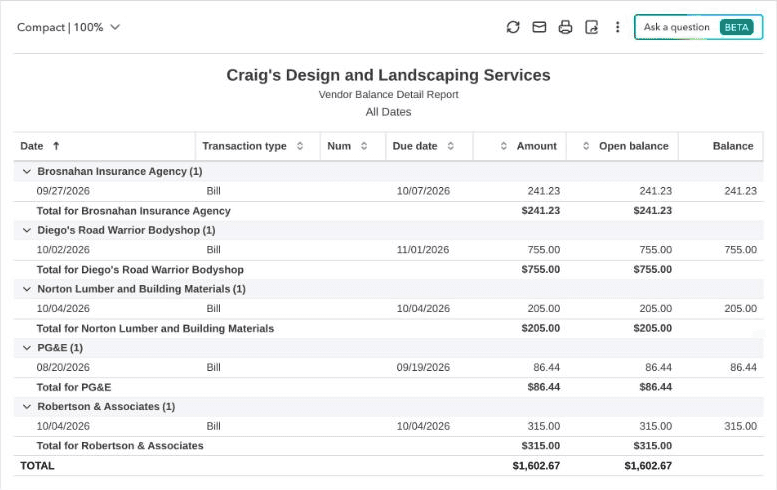
To export the result, use the Export dropdown on the report and choose Export to Excel or Export to PDF. You will want Excel. Sorting by reference is the quickest way to line the two documents up.
If Vendor Balance Detail is not what you want, a second report gives you the activity view. Transaction List by Vendor shows each bill, payment and credit as its own row over a date range, which is closer to the shape of a balance-forward statement. The steps below come from Intuit Community answers: open Reports, find Transaction List by Vendor, group by vendor, then filter the supplier and dates.
QuickBooks Online
Checked
Transaction List by Vendor
Set the vendor filter and the date range. Tick the transaction types you need, including Bill Payment and Credit, and add Check or Expense if you pay suppliers outside Pay bills.
Source: Intuit Community answers; the report name checked in the QuickBooks Online Test Drive company on 31 Oct 2026
Swipe sideways to see every column.
| Report | Use it when | Watch out for |
|---|---|---|
| Vendor Balance Detail (start here) | The statement is open-item, or you want the closing balance by supplier | Shows only what is open on the report date, so a paid bill will not be listed |
| Transaction List by Vendor | The statement is balance-forward and lists payments | Lists bills, payments and credits as separate rows over a date range. |
| Unpaid Bills | You want a quick list of open bills for one supplier before a payment run | Lists open bills only; check credits separately. |
| Accounts payable aging detail | You want to know what is overdue | Groups open items into age buckets, which suits chasing what is overdue better than checking lines. We have not verified how it ages items, so test it on a known bill before relying on it. |
Bills and the vendor reports are not on every plan. Check Intuit’s plan comparison for yours.
Aged payables is the report people often run instead, and it does not replace this check. It shows what is overdue, which is a different question from whether the supplier agrees. Aged payables is called aged creditors in some countries; the glossary entry covers both.
Step 2: Compare the two totals and write the gap down
The gap is the supplier’s closing balance minus the QuickBooks balance, both as at the statement date. Write it down with its sign. A negative gap means QuickBooks says you owe more than the supplier does. A positive gap means the reverse.
Decide your tolerance before you start. Many teams let a gap of a few cents go if it is rounding on a foreign-currency or tax line, and chase anything bigger. That threshold is your own policy, not a QuickBooks setting, so write it at the top of the working page.
The table below shows one way to set the bands. The amounts are examples only, so replace them with your own.
Swipe sideways to see every column.
| Size of the difference | Typical cause | What to do |
|---|---|---|
| Under $1.00 | Rounding on a tax or foreign-currency line | Note it on the working page and let it go. |
| $1.00 to $50.00 | A tax split, a freight line or a keying slip | Check the invoice against your bill before writing to anyone. |
| Over $50.00, or any missing document | A bill never entered, a duplicate, an unrecorded credit note or an unapplied payment | Give it a named cause and an owner, and clear it before the next payment run. |
A matching total proves less than it looks. Here is an account where both sides come to 4,634.15 and two lines are still wrong.
Swipe sideways to see every column.
| Reference | Status | Statement | QuickBooks | Note |
|---|---|---|---|---|
| LF-2262 | Matched | 1,480.20 | 1,480.20 | |
| LF-2268 | Matched | 1,119.35 | 1,119.35 | |
| LF-2275 | Matched | 2,034.60 | 2,034.60 | |
| LF-2281 | Missing | 598.30 | not listed | Invoice never entered in QuickBooks |
| LF-C088 | Missing | −598.30 | not listed | Credit note of the same amount, also never entered |
| Total | 4,634.15 | 4,634.15 |
The supplier raised an invoice for 598.30 and later credited the same amount. You recorded neither, so the totals agree while QuickBooks is wrong twice. If the invoice was a genuine charge that the credit note cancelled, no harm done. If the credit was for something else, such as a return or a price dispute, you will want the paperwork. The total will not tell you.
Step 3: Check every line, not just the total
Match on the supplier’s invoice number first, then the date, then the amount, and only call it a match when all three agree. Don’t match on amount alone. A duplicate bill carries the same amount as the original, so you would tick both and never notice.
This only works if the supplier’s invoice number is in the bill number field when you enter the bill. Many people type their own sequence there and then cannot find anything later. Put the supplier’s number in every time and next month’s matching is mostly sorting. The rule for two candidates that both fit is in how statement lines are matched.
Export the report and put the statement beside it
Two columns of references, sorted the same way. A spreadsheet is fine, and so is a printout and a pen.
Tick each pair that agrees on reference, date and amount
Use one colour for matched lines. Do not tick a pair that agrees on amount only.
Sort what is left into three piles
On the statement only. In QuickBooks only. On both, but different. Every untouched line is one of these.
Give each leftover a cause and an owner
Write the cause next to the line. If you cannot name one, you have not finished.
Payments are the awkward case. A payment you made on the 29th may show on your report and not on the statement, because some suppliers post a payment only when the money reaches their bank. A payment still in transit is the supplier’s to apply, not an error on your side. Check the date it cleared in your bank feed before you decide whose side is wrong.
Steps 1 to 3 on one statement: a $962.75 gap and five problems
Tidewater Coffee Roasters buys from Larkfield Restaurant Supply. Both are made up for this page. Larkfield’s statement is dated 30 September 2026 and closes at $8,166.35. Tidewater’s Vendor Balance Detail for the same date shows $9,129.10. QuickBooks is higher by $962.75, so the gap, statement minus QuickBooks, is −962.75.
Here is the statement. Three lines carry a marker because nothing in QuickBooks matches them.
An open-item supplier statement with seven lines: six invoices and one credit note, with a running balance ending at 8,166.35. Three lines carry numbered markers for the payment the supplier has not applied, an invoice missing from QuickBooks, and a credit note not recorded.
Swipe sideways to see every column.
Larkfield Restaurant Supply, Inc.
Customer account TCR-6140
Statement of account
30 Sep 2026
| Date | Reference | Description | Debit | Credit | Balance |
|---|---|---|---|---|---|
| 29 Jul | LF-2198 | InvoiceNote 1 | 1,017.60 | 1,017.60 | |
| 05 Aug | LF-2203 | InvoiceNote 2 | 1,362.00 | 2,379.60 | |
| 12 Aug | LF-2214 | Invoice | 1,742.30 | 4,121.90 | |
| 19 Aug | LF-2221 | Invoice | 968.45 | 5,090.35 | |
| 26 Aug | LF-2236 | Invoice | 2,310.10 | 7,400.45 | |
| 03 Sep | LF-2249 | Invoice | 1,095.75 | 8,496.20 | |
| 14 Sep | LF-C071 | Credit noteNote 3 | 329.85 | 8,166.35 | |
| Closing balance | 8,166.35 | ||||
- Note 1Tidewater paid this on 29 September. QuickBooks no longer shows it as open. The supplier has not applied the payment yet.
- Note 2An invoice that was never entered in QuickBooks.
- Note 3A credit note that is nowhere in QuickBooks.
The statement is an open-item layout, so there is no opening balance. The balance column is a running total of what is still open. Now the line-by-line check, where the QuickBooks column is Vendor Balance Detail as at 30 September.
Swipe sideways to see every column.
| Reference | Status | Statement | QuickBooks | Note |
|---|---|---|---|---|
| LF-2198 | Query | 1,017.60 | not listed | Paid 29 Sep. Not in QuickBooks as open. |
| LF-2203 | Missing | 1,362.00 | not listed | Never entered |
| LF-2214 | Matched | 1,742.30 | 1,742.30 | |
| LF-2221 | Matched | 968.45 | 968.45 | |
| LF-2236 | Matched | 2,310.10 | 2,310.10 | |
| LF-2236 (entered again 27 Aug) | Query | not listed | 2,310.10 | Second bill with the same number |
| LF-2249 | Matched | 1,095.75 | 1,095.75 | |
| LF-2255 | Missing | not listed | 702.40 | We dated it 30 Sep, the supplier dated it 2 Oct |
| LF-C071 | Missing | −329.85 | not listed | Credit note not recorded |
| Total | 8,166.35 | 9,129.10 |
Four lines tick cleanly. Five do not. Three are on the statement only (LF-2198, LF-2203, LF-C071) and two are in QuickBooks only (the second LF-2236, which is why that reference appears twice in the QuickBooks column, and LF-2255). To prove those five explain the gap, walk from the QuickBooks balance to the statement balance one item at a time. If you end anywhere else, a cause is still missing.
Show as table
| Step | Amount | Running balance |
|---|---|---|
| QuickBooks balance | $9,129.10 | $9,129.10 |
| LF-2236 entered twice | −$2,310.10 | $6,819.00 |
| LF-2255 dated 30 Sep by us, 2 Oct by the supplier | −$702.40 | $6,116.60 |
| LF-2203 on the statement, never entered | +$1,362.00 | $7,478.60 |
| LF-2198 paid 29 Sep, supplier has not applied the payment | +$1,017.60 | $8,496.20 |
| LF-C071 credit note not recorded | −$329.85 | $8,166.35 |
| Statement balance | $8,166.35 | $8,166.35 |
Three items push QuickBooks above the statement by $3,342.35 (the duplicate, the timing difference and the credit note). Two push it the other way by $2,379.60 (the bill never entered and the payment still listed). They net to $962.75. Had you only looked at the total, you would have gone hunting for one invoice of $962.75 that does not exist.
Swipe sideways to see every column.
| Statement line | Ref | Amount | Ledger match | Cause | Action |
|---|---|---|---|---|---|
| 29 Jul | LF-2198 | 1,017.60 | Not open in QuickBooks, paid 29 Sep | Payment not applied by supplier | Send payment date and bank reference |
| 05 Aug | LF-2203 | 1,362.00 | None | Bill never entered | Enter the bill |
| 26 Aug | LF-2236 | 2,310.10 | Two bills with the same number | Bill entered twice | Delete the second bill |
| 14 Sep | LF-C071 | −329.85 | None | Credit note not recorded | Enter and apply the vendor credit |
| Not on statement | LF-2255 | 702.40 | Dated 30 Sep in QuickBooks, 2 Oct by supplier | Date falls across the cut-off | None, it lands on the next statement |
The free template lays this out in columns, with a cause for each line. The academy has more worked examples to practise on.
What do you do about each difference, and who does it?
Three of the five differences in the example are yours to fix, one belongs to the supplier, and one belongs to nobody because it fixes itself.
Swipe sideways to see every column.
| Difference | What you see | Who acts | In QuickBooks |
|---|---|---|---|
| Bill entered twice (LF-2236) | Same number, same amount, entered on two dates | You | Check the second bill has no payment, then delete it |
| Bill never entered (LF-2203) | On the statement, absent from the report | You | + Create, then Bill. Use the supplier’s invoice number and date. |
| Credit note not recorded (LF-C071) | Negative line on the statement, nothing in QuickBooks | You | + Create, then Vendor credit. Then apply it in Pay bills. |
| Payment not applied by supplier (LF-2198) | Open on the statement, paid in your bank | Supplier | Nothing. Send the payment date and bank reference. |
| Date falls across cut-off (LF-2255) | In QuickBooks only, dated on the statement date | Nobody | Nothing. It lands on the next statement. |
| Same reference, different amount | Both sides list the number with two amounts (tax split, rounding, currency or a typo) | You first | Check the invoice. If yours is wrong, edit the bill. If theirs is, ask for a corrected invoice. |
Swipe sideways to see every column.
| Exception | What you see | First move |
|---|---|---|
| Payment not linked to the bill | Paid in your bank, but the bill still shows as open | Open the payment and check it is applied to that bill rather than entered as a separate expense. |
| Vendor credit not applied | A credit sits open on the vendor while the bill it belongs to is still owed | Apply the credit when you pay the bill, as in Intuit’s help page listed in the sources. |
| Wrong supplier | A bill is missing here, but a bill with the same number exists under a similar vendor name | Compare the two vendor records and move the bill to the right supplier. |
| Foreign currency | Every line is out by about the same ratio | Check the exchange rate on each bill against the rate the supplier used. |
| Tax rounding | A difference of a few cents on lines with tax | Apply your tolerance rule and note it on the working page. |
| Disputed item | You and the supplier disagree on whether the invoice is owed | Leave it on the list with an owner and a date, and do not post an adjustment. |
| Supplier under two vendor records | Each report shows only part of the balance because bills sit under two similar vendor names | Run the report for both records, then merge the records or move the bills so one supplier has one balance. |
| Bill held for approval outside QuickBooks | The supplier lists an invoice that has reached your office but has not been entered yet | Enter it, or record who is holding it and the date it is due to be approved, so the line has an owner. |
| Supplier account on hold | The statement carries a hold or stop-supply note, or a payment is shown as unallocated | Ask the supplier what caused the hold and which payment or invoice is outstanding before the next payment run. |
| Reversed or cancelled by the supplier | The statement shows the invoice and a later reversal | Ask for the credit note and enter it once you have it. |
When both sides carry the same reference but different amounts, look at the size of the difference. If it equals a tax line, suspect a tax split. If it is a few cents, suspect rounding. If every line is out by the same ratio, suspect currency. In each case you check the invoice against your bill before you write to anyone. The academy cheat sheet lists all the exception types on one page.
A reconciliation is easier to rely on later if the working page is kept with it. Save the Vendor Balance Detail report as run on the statement date, the statement itself, the list of differences with a cause and an owner for each, and the name and date of whoever prepared and whoever checked it. Treat a difference as material when it is large enough to change what you pay or what you report, and set that amount for each supplier at the top of the page with the tolerance rule. How long to keep the file is set by your own record retention policy and local rules, so check those rather than copying a period from a guide.
Once the fixes are made, both sides should land on the same figure. Here is where the example ends up.
Swipe sideways to see every column.
| Side | Starting balance | Adjustment | Adjusted balance |
|---|---|---|---|
| QuickBooks | 9,129.10 | −1,277.95 (delete duplicate −2,310.10, enter LF-2203 +1,362.00, enter credit −329.85) | 7,851.15 |
| Statement | 8,166.35 | −315.20 (add LF-2255 +702.40, remove the paid LF-2198 −1,017.60) | 7,851.15 |
You cannot edit the supplier’s statement. The adjustment on that row shows what it will say once they apply your payment and issue LF-2255 on 2 October. Both items clear by themselves, so you correct nothing.
Step 4: Fix your side inside QuickBooks
If a line puzzles you, run it through the flow below. The questions are the ones the example answered.
A decision flow for a line that does not match. It asks whether the line is on the statement only and whether you paid it. Then it asks whether you hold the document. For lines in QuickBooks only it asks about the date and about second copies. Each answer ends at an action.
- 1A line does not tick
- 2DecisionIs it on the statement only?Yes: go to step 3No: go to step 8
- 3DecisionHave you already paid it?Yes: go to step 4No: go to step 5
- 4The supplier has not applied your payment. Send the date and bank reference.
- 5DecisionDo you hold the invoice or credit note?Yes: go to step 6No: go to step 7
- 6Enter the bill or vendor credit, dated as the supplier dated it.
- 7Ask the supplier for a copy before entering anything.
- 8DecisionIs it in QuickBooks only?Yes: go to step 9No: go to step 14
- 9DecisionIs it dated on or after the statement date?Yes: go to step 10No: go to step 11
- 10Timing. Change nothing and look for it on the next statement.
- 11DecisionIs it a second entry of a bill you already have?Yes: go to step 12No: go to step 13
- 12Confirm it has no payment, then delete the second bill.
- 13Check the vendor and the bill number. It may sit under the wrong supplier.
- 14Both sides list it with different amounts. Check the invoice itself.
- 15Write the cause beside the line
Enter a missing bill
Intuit’s current help starts new transactions from + Create. Older answers call it + New, and Intuit is mid-rename, so use whichever your screen shows. Choose Bill (this step comes from Intuit Community answers), pick the vendor and put the supplier’s invoice number in the bill number field. Date the bill as the supplier dated it. If you use today’s date it lands in the wrong month and the report won’t agree with the statement.
Record a credit note (a vendor credit) and apply it
Entering a vendor credit doesn’t apply it, and people miss that. Step one: + Create, then Vendor credit. Pick the vendor, add the category or item details and save. Step two: + Create, then Pay bills, select the bill and look for Credit Applied showing the amount you expect before you save.
From Intuit’s help: a credit applied to one bill is not available for another, and a credit that covers the whole bill produces a payment of 0.00 and marks the bill paid.
Open vendor credits show up in Vendor Balance Detail, so look there before each payment run if the supplier sends credit notes often. If a credit note really is missing from your records, missing credit notes and duplicate payments covers the chase.
When the supplier refunds in cash
If you overpaid and the supplier sends the money back, the credit and the refund have to be linked. Intuit’s method:
- Create the vendor credit.
- Create a bank deposit with the vendor as Received From and the account set to Accounts Payable (A/P).
- Use Pay bills and select the deposit, so that Credit Applied equals it and the total payment is 0.00.
Intuit says you must select Accounts Payable (A/P) to link the deposit to the vendor credit. Leave it out and the deposit is not linked to the credit.
If you use QuickBooks Online outside the US
The UK and Australian editions use different words. A vendor credit is usually a supplier credit or credit note, and the report that does the same job as Vendor Balance Detail is called Supplier Balance Detail. Intuit’s list of reports for its international English help also names Transaction List by Supplier, Unpaid Bills and Accounts payable ageing detail. Menus and report names differ by edition, and we checked only the US menus, so search for the report by name.
VAT and GST also change the comparison. A supplier statement normally shows gross amounts, including tax, so compare it with a report that also shows gross. A few cents of rounding on tax lines is common and falls under your tolerance rule, not under an error to chase.
Delete a duplicate bill
Before you delete anything, open the second bill and see whether it has a payment against it. If it does, move that payment to the original bill first, or the payment is left with nothing to apply to. Then delete the extra bill. In the example that was the one entered on 27 August.
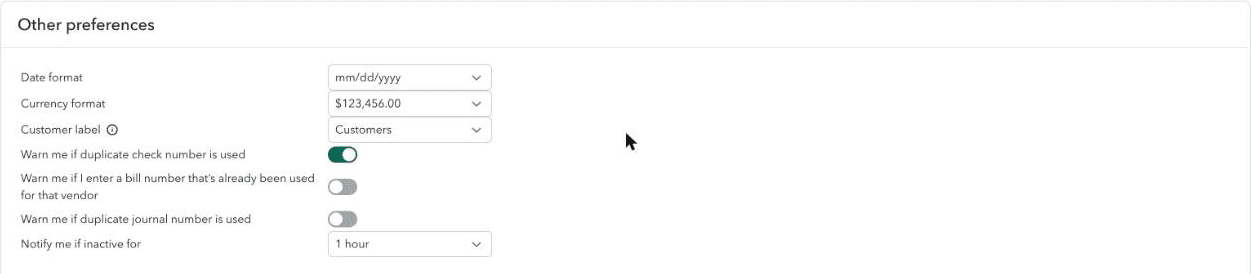
To stop it happening again, QuickBooks has a setting. Under Account and settings, Advanced, Other preferences, look for the warning about bill numbers already used for that vendor. In Intuit’s US Test Drive company on 31 October 2026 it read "Warn me if I enter a bill number that’s already been used for that vendor", and it was switched off. Intuit says advanced settings vary by region, so the label may differ in yours.
The payment that is in the wrong place
This is the one that makes totals agree and bills disagree. A payment was recorded, but against the wrong bill, or against none. The vendor’s total is right and the individual bills are wrong, so a total-only check passes.
Find it in Vendor Balance Detail. An old bill that you know you paid still shows open, and a newer bill shows partly paid. A common fix is to open the payment, remove the wrong bill, and apply it to the right one. If the bill was never entered at all, enter it first. Menus differ by edition, so start from Vendor Balance Detail and look for the payment in question.
The Automation settings under Account and settings, Advanced include automatic application of credits and debits. Intuit documents this setting for customer credit memos. Check what it does to your vendor credits on a test bill before relying on it.
Step 5: What do you ask the supplier?
Only two kinds of difference are the supplier’s to answer: a payment they have not applied, and a document you do not have. Send one line per item, not the whole reconciliation.
If the supplier says they never applied a payment, send the statement date, the invoice reference, the amount, the date you paid and the bank reference (or the remittance PDF). In the example that is LF-2198, $1,017.60, paid 29 September. Ask them to confirm it is applied, and to send a new statement if it went against the wrong invoice.
The wording for each case, including the allocation request, is in common supplier statement problems.
Step 6: Keep a record and decide how often to check
Keep one page per supplier per month. It needs the statement date and balance, the QuickBooks balance, the gap, each difference with its cause and owner, and the adjusted balances. Save it with the statement PDF. If an auditor or a new colleague asks why a number moved, the page answers it.
How often you do this is your decision; nothing in QuickBooks requires it. A reasonable pattern is monthly for the suppliers you spend the most with, and before a payment run for the rest. The month-end checklist sets out a full cadence if you want one.
For a statement of about 30 lines, plan on roughly 20 minutes per supplier. That figure is our own estimate, not a measurement, and it grows when there are many unmatched lines.
Keep these four items together for each supplier and month:
- The statement PDF, saved under its printed date.
- The QuickBooks report export, with the as-at date it was run for.
- Any email to or from the supplier about a difference.
- The working page, with the date you finished and who did it.
Before you close the working page, check these six things:
- The report was run as at the printed statement date.
- The gap is written down with its sign.
- Every statement line is ticked or has a named cause.
- Every QuickBooks-only line is ticked or has a named cause.
- Each cause has an owner: you, the supplier, or nobody.
- The adjusted balances agree, and the page is saved with the statement PDF.
What if the statement is too long to tick by hand?
One page for one supplier is a short job. A statement with 80 lines, or twenty suppliers on the same Friday, is not, and the temptation is to check the total and call it done.
We make Statement Zen, so weigh this section accordingly. A spreadsheet works fine until you have more statements than Fridays. After that you can forward the supplier’s PDF to Statement Zen and it does the matching. It reads QuickBooks Online read-only and the result shows in your dashboard. The page for QuickBooks says what it connects to, and pricing has its own page.
To judge it on a real statement before deciding, forward one and see the result.
Questions people ask
Does QuickBooks Online have a supplier statement report?
Which QuickBooks report should I use to compare with a vendor statement?
How do I reconcile a vendor statement in QuickBooks Online?
Why doesn’t my vendor statement match QuickBooks?
Why does the total match but the individual bills do not?
The supplier shows a credit note that is not in QuickBooks. What do I do?
My payment is not on the supplier’s statement. Is that an error?
What if I paid a supplier twice?
About the author
Michael Usov, Founder, Statement Zen
Michael Usov founded Statement Zen, which reconciles supplier statements against your accounts payable ledger. He also runs MRU Consulting, which builds accounts payable and ERP integrations, including for construction businesses on Viewpoint Vista. For the last fifteen years he has worked with finance controllers and AP managers in construction companies, doing and automating supplier statement reconciliation and other accounting tasks.
Sources
- Intuit: Reconcile an account in QuickBooks Online (updated 5 Aug 2026), read
- Intuit Community: How can I get a supplier statement off QB (11 Feb 2021), read
- Intuit: Print customer or vendor register and balance detail reports, read
- Intuit: Run a report for vendor totals and export it, read
- Intuit: Enter a vendor credit and refund, read
- Intuit: Apply vendor credits when paying bills, read
- Intuit: Set advanced account settings, read
What changed
- : First published. Menu names checked against Intuit help pages; not tested in a live QuickBooks Online company.
- : Next check due 2026-11-30: Intuit is renaming + New to + Create, so menu names will be rechecked then. Added a supplier email template, a closing checklist, a tolerance rule and a note for non-US editions.
- : Removed an unverified claim about how Accounts payable aging detail ages items. Added tables for tolerance bands, the six template columns and further exception types, a time estimate and a list of what to keep.
- : Reworded the Accounts payable aging detail row to say we have not verified how it ages items. Added exception rows for a supplier under two vendor records, a bill held for approval and a supplier account on hold, and a paragraph on materiality and keeping the working page.
- : The opening note now says the main menus were clicked through in Intuit’s Test Drive sample company on 31 October 2026.
Read next
- How to Find Missing Credit Notes and Duplicate Payments With Supplier StatementsRead next if the check turned up a credit note you never received or a bill you may have paid twice.
- How Supplier Statement Matching Works: References, Amounts, Dates and Part PaymentsRead this for the rules behind matching on reference, date and amount, and what to do when two candidates fit.
- Supplier Statement Reconciliation Checklist for Month-End and Before the Payment RunA printable month-end and pre-payment-run list, if you want a fixed routine around this one.